

Where it lives
Open the account menu at the bottom of the sidebar and click Profile. The Profile details panel shows your avatar, editable First name and Last name, and a read-only Email address.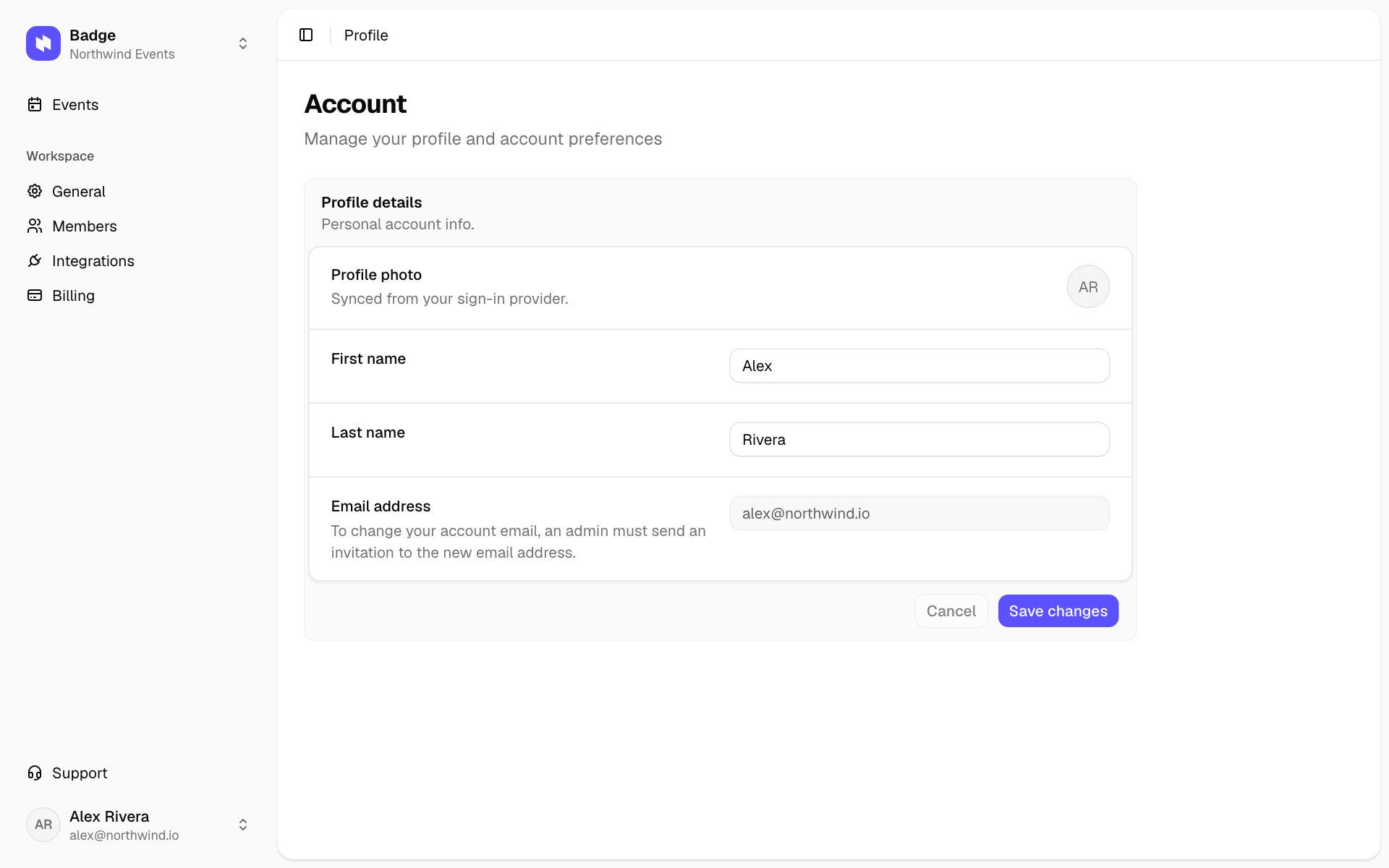
The Profile page
Edit your name
1
Open Profile
Open the account menu at the bottom of the sidebar and click Profile.
2
Update First name and Last name
Edit either or both fields. Leading and trailing whitespace is trimmed when you save.
3
Click Save changes
A toast confirms “Profile updated” when the save completes. Cancel discards edits and restores the saved values.
- The avatar fallback initials (when no profile picture is set).
- The account menu at the bottom of the sidebar, and the workspace member list.
- Every workspace you belong to. Your name is shared across all of them.
Avatar
The avatar on your account menu and everywhere else in Badge comes from your identity provider:- Google sign-in. Badge uses your Google profile picture.
- Email code sign-in. Badge shows your initials until a profile picture is set on the account.
To change your account email, an admin must send an invitation to the new email address.Migration path: an Admin invites your new email from Workspace → Members (Invite teammates), you accept on the new inbox, then the Admin removes the old account. Workspace data stays; only the membership identity changes.
Role
Your role belongs to a workspace, not to your account, so it can differ between the workspaces you belong to. Workspace → Members lists every member with their role, including yours. To request a role change, ask any workspace Admin to update it there. See Roles and permissions for the full capability matrix.Related
- Login methods. Email code and Google sign-in details.
- Delete your account. How to fully remove your Badge account.
- Members reference. For admins changing other people’s roles.
- Create your workspace. How the workspace switcher behaves.